How to Set Up Amenities for Your Community
Amenities help foster a vibrant, smoothly running community. By setting up clear rules for each space—like hours, requirements, and bookings—you empower residents to self-manage their reservations and keep common areas organized.
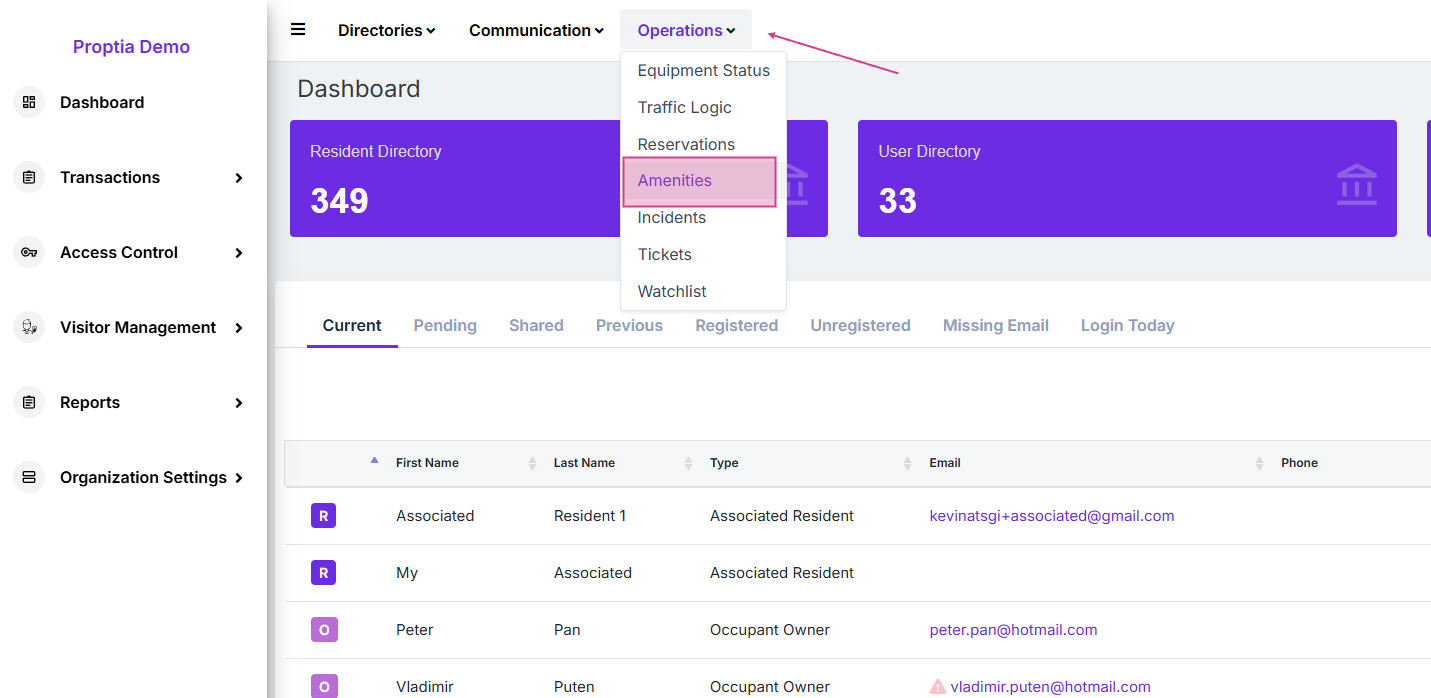
Step 1: Open the Operations section from the main menu and click Amenities.
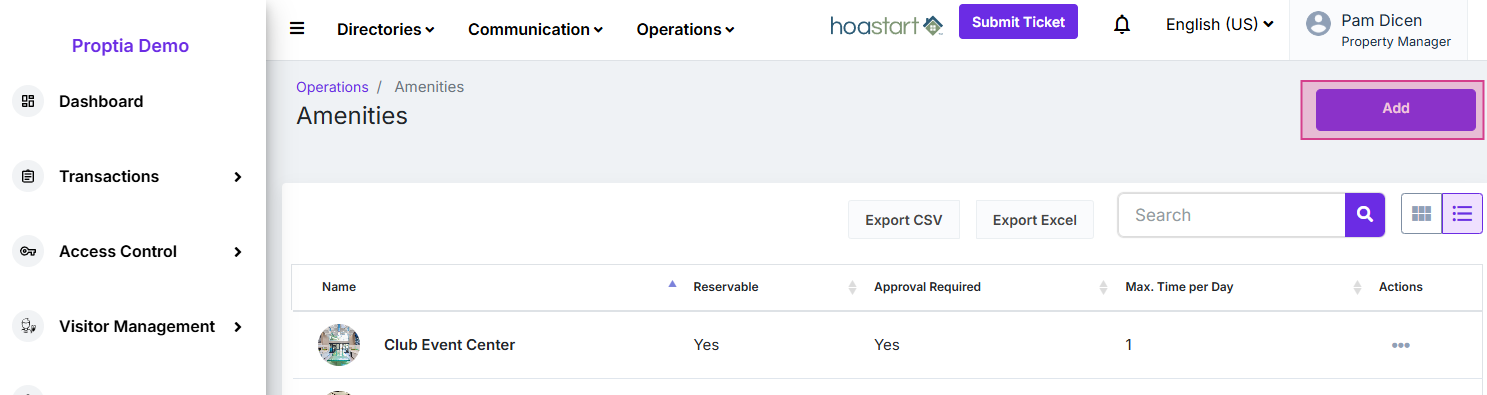
Step 2: Click Add in the top right to create a new amenity.
Step 3: Fill in the amenity’s name and description. Be clear—residents will see these when browsing.
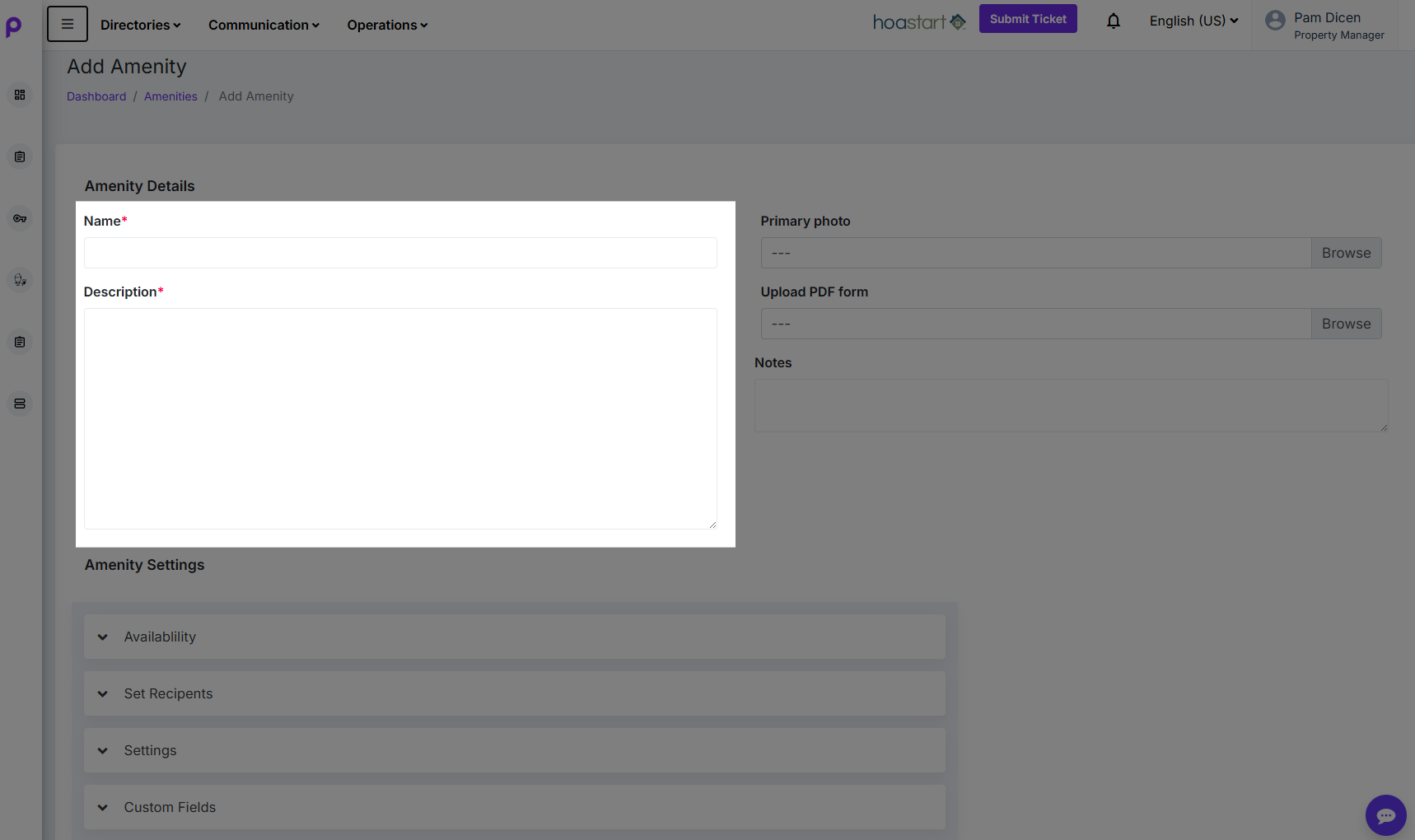
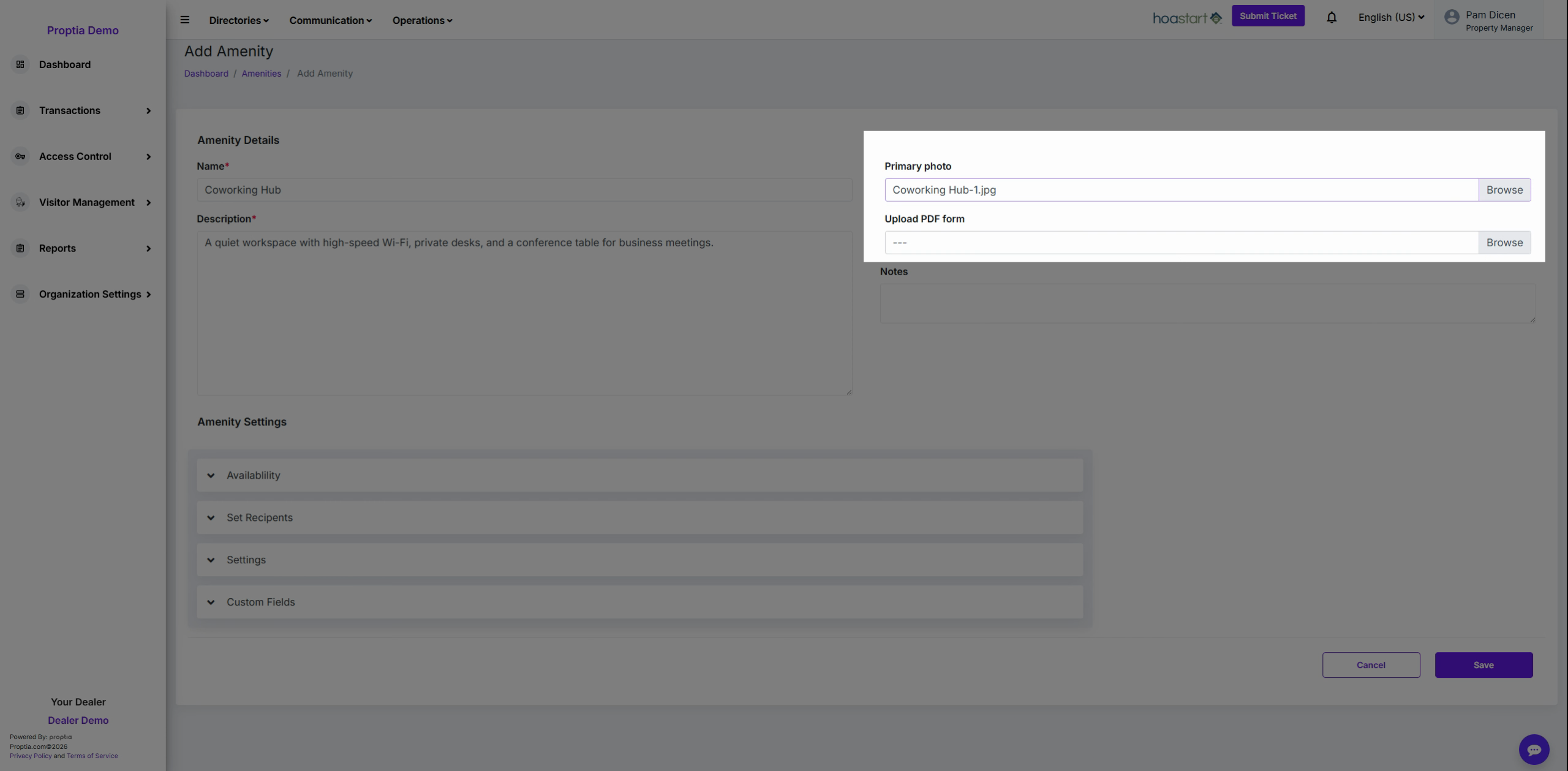
Step 4: You can choose to add a Primary photo for the amenity and attach a PDF if you have rules, waivers, or agreements for the amenity. Click Browse next to the Primary photo and/or PDF fields, select your document, and hit Open. Consider uploading policies, liability waivers, or agreements.
You can also choose to leave some note on the Note field.
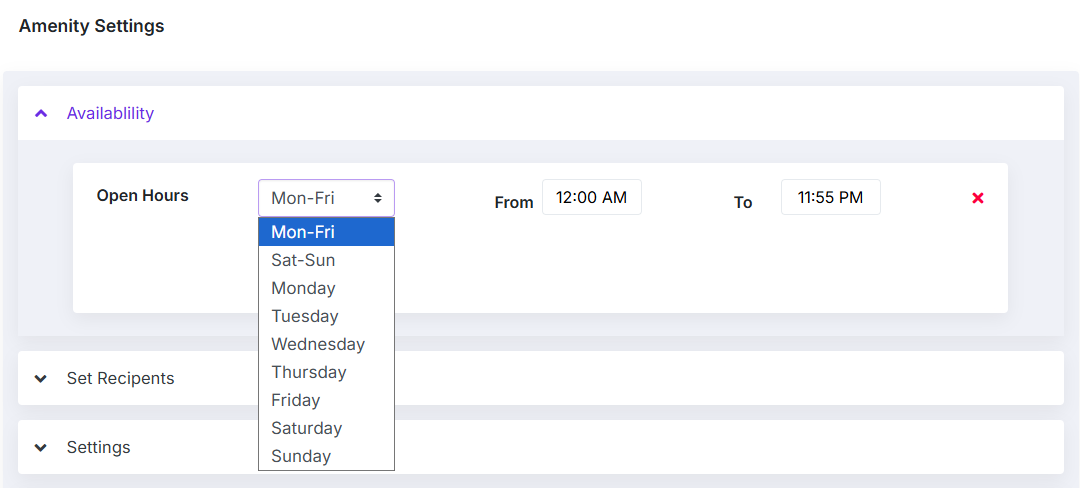
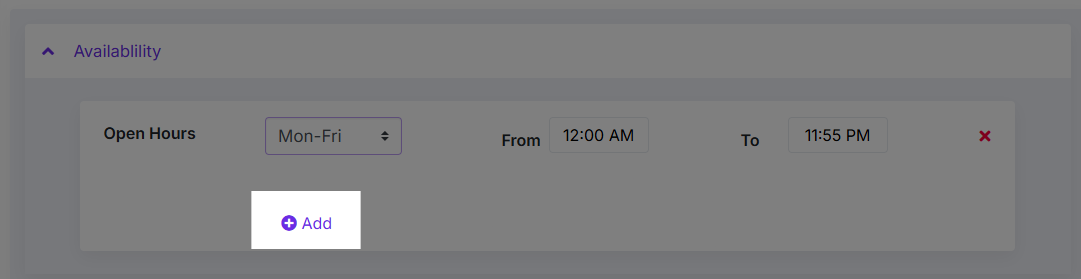
Step 5: Set availability. Open the drop-down menu to pick which days the amenity is open—like Monday to Friday—and adjust hours, such as 8 a.m. to 6 p.m. Add more availability if the space is open on weekends. Click Add, select additional days, and adjust their respective hours if needed.
Step 6: If amenity is exclusive to certain roles or groups—like "Homeowners Only", use the dropdown under Set Recipients for Group or Role to select who is allowed to book.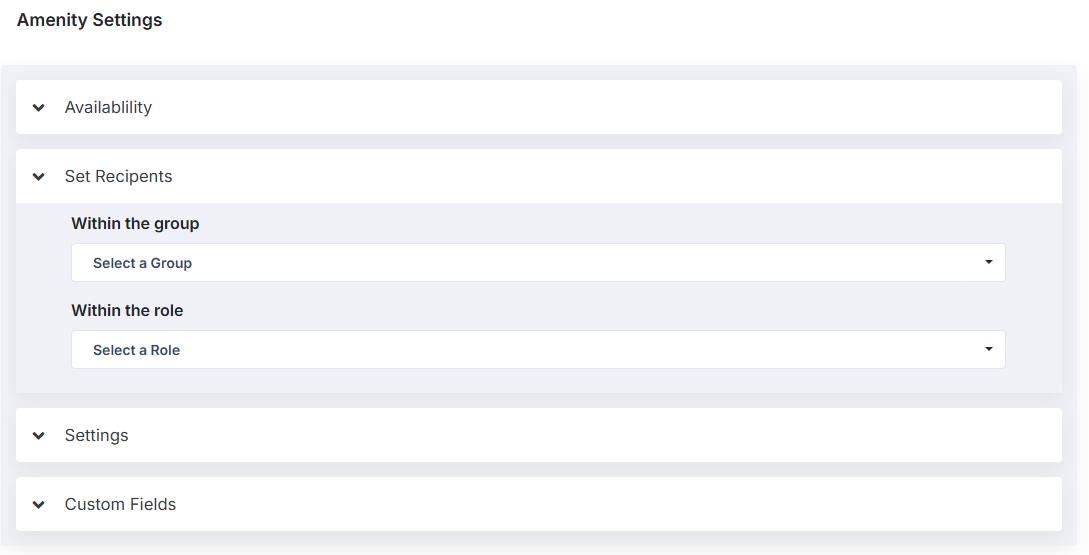
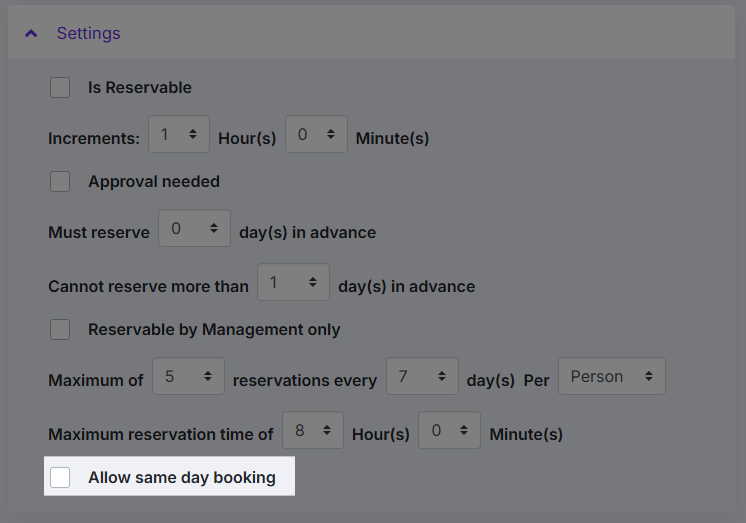
Step 7: In the Settings section, toggle Is Reservable to control whether the place is ready and residents can start booking. Leave it unchecked if not.
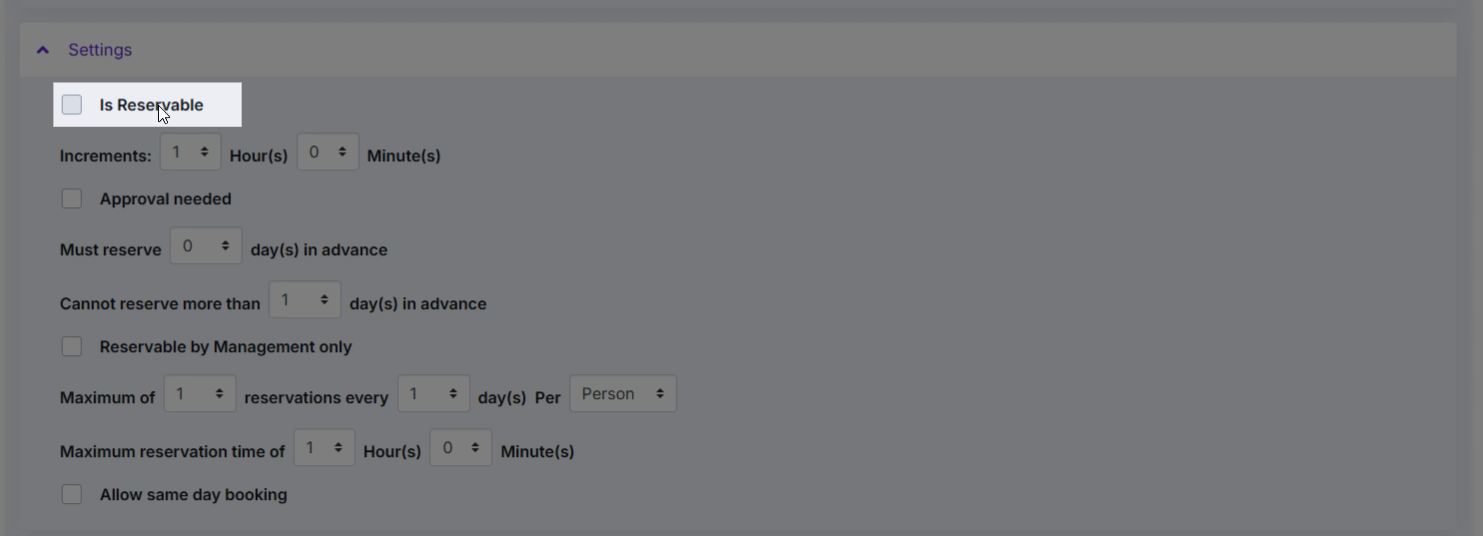
Step 8: Choose booking increments that best fit the space’s needs.
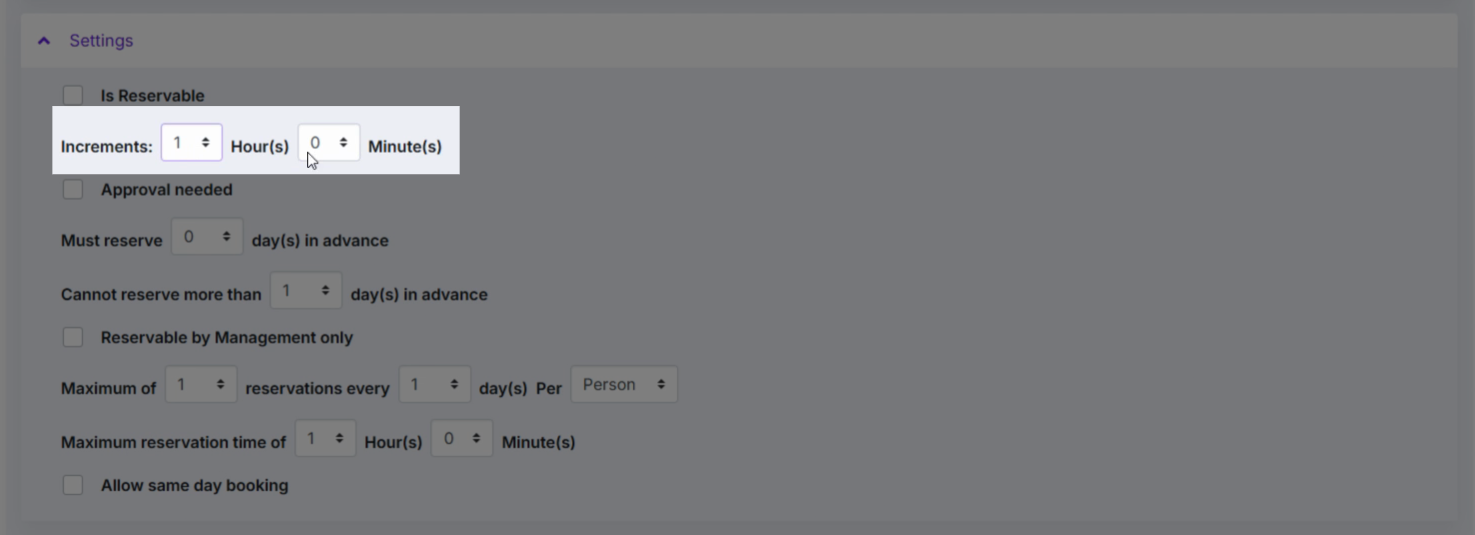
Step 9:
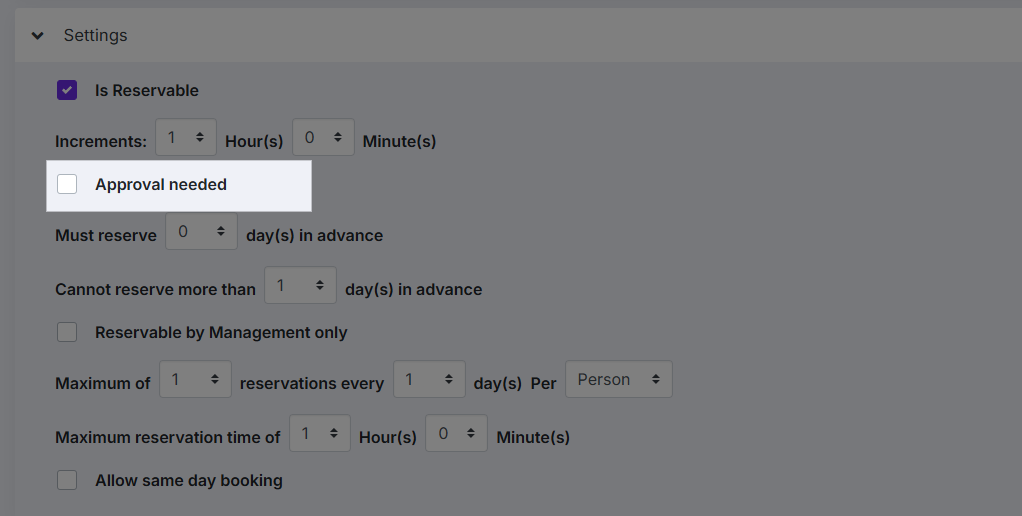
Check Approval needed if you need to review every request for reservations. Leave unchecked to confirm bookings automatically.
Step 10:
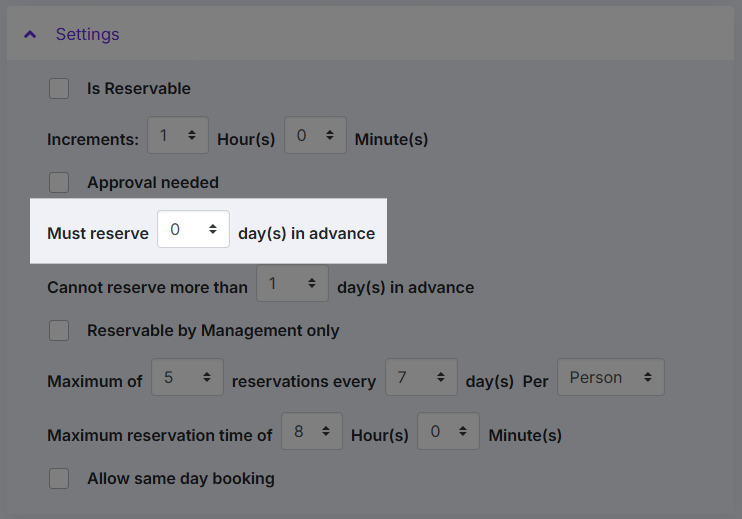
Use Must reserve X day(s) in advance to prevent last-minute bookings. This option is necessary if amenities require advance notice for preparation before use.
Step 11:
To prevent people from booking too far ahead, use Cannot reserve more than X day(s) in advance.
Step 12:
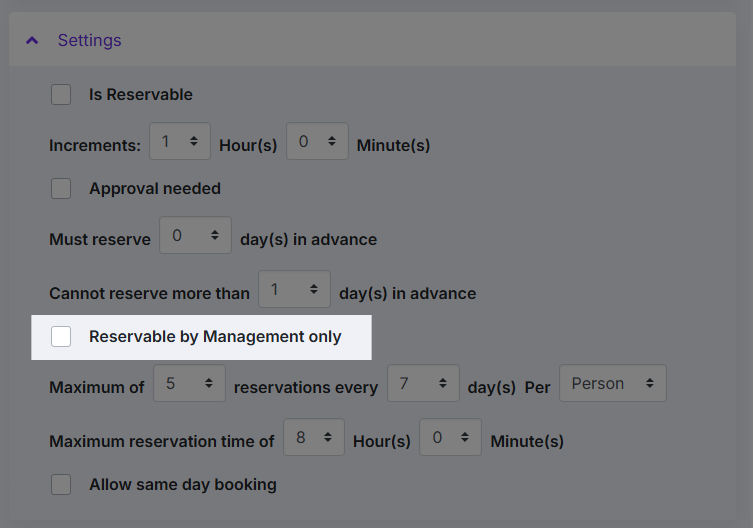
Check Reservable by Management only if the amenity is exclusive for the management team.
Step 13:
To prevent 'hogging' a space, set the maximum number of reservation every x days per property or person.
Step 14:
To limit the duration of a reservation, set Maximum reservation time.
Step 15:
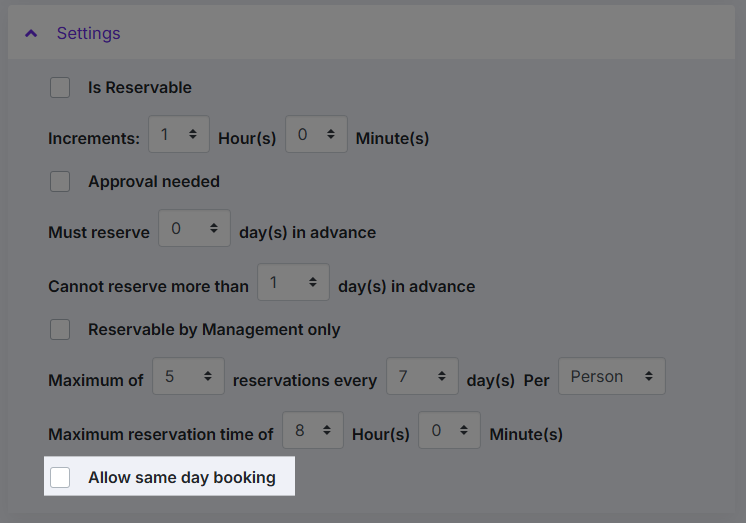
If you allow same day booking, check Allow same day booking.